

What are read-only files and what are they used for?
Read-only files can be opened, but cannot be edited. They are typically used as templates for creating new files. Since read-only files cannot be modified, they often serve as a model or blueprint for creating several similar files. Both Windows and Mac OS X support read-only files.
Windows
To make a file "read-only" in Windows, first right-click the file, then select "." Near the bottom of the Properties window is an "Attributes" section. Simply check the "Read-only" box (as shown below) and click Apply.
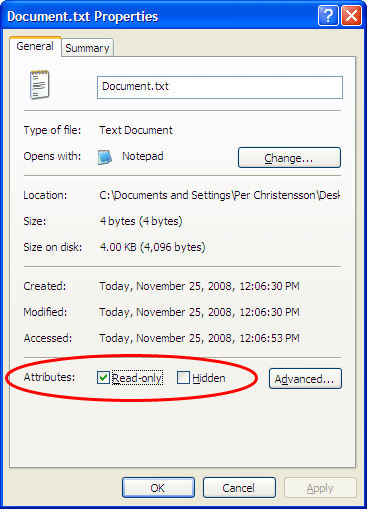
Once you have set a file as "read-only," you will not be able to overwrite it. While you will be able to open the file, you will only be able to save it with a different filename. Opening a read-only file is similar to using the "Open as a copy" function that some programs offer. However, unlike opening a read-only file, the "Open as a copy" function creates a copy of the file when it is opened rather than when it is saved.
Mac OS X
Mac users can also create read-only documents. To make a file "read-only" in Mac OS X, right-click (or Control-click) a file and select "Get Info." In the top section of the Info window is a "Stationery Pad" checkbox (see below). By checking this box, the file is converted to a read-only template. Whenever a stationery pad is opened, a copy of the file is created.
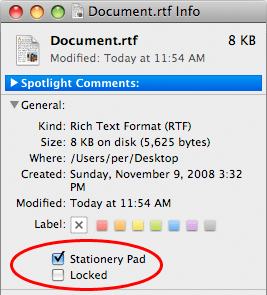
Mac OS X stationery pads provide a useful means of creating several similar documents based off one standard document. However, stationery pads can be overwritten if a file with the same name is saved over the document. Therefore, it may be a good idea to store your stationery documents in a separate directory from where you save your edited documents.
To prevent important Mac OS X documents from being accidentally overwritten or deleted, you can check the "Locked" checkbox in the file's Info window (see above).